Import your clients from Google Contacts into GuideMate
Export your Google contacts as a CSV file and import them into GuideMate in a few clicks. The dedicated flow automatically recognises your Google labels and creates tags in the app.
GuideMate generates a unique email address for you. Forward any client request to it and it automatically appears in your opportunity pipeline.
Every guide receives requests from all directions: text messages, emails, Instagram DMs, phone calls... Finding them all in one place, without manual entry, is possible thanks to GuideMate's inbound email address.
GuideMate assigns you a unique personal email address, like firstname-xxxxxx@opportunities.guidemate.app.
Whenever an email arrives at this address, GuideMate automatically creates an opportunity in your pipeline, pre-filled with information extracted from the message: outing type, dates, mountain range, number of participants...


That's it. The address is already active.
Someone emailed you on your Gmail or Outlook inbox? Simply Forward it to your GuideMate address.
You can display it as your contact address. Requests go straight to your pipeline, bypassing your personal inbox.
In Gmail, create a filter: "If the subject contains 'request' → forward to my GuideMate address". All your requests are redirected without manual intervention.
The created opportunity appears in the Activities tab, with the Opportunity status. GuideMate tries to extract:

All that's left is to review, complete and move the opportunity to the next stage: Draft then Scheduled.
If you want all requests arriving in your Gmail inbox to be automatically forwarded to GuideMate, here's how to set it up:
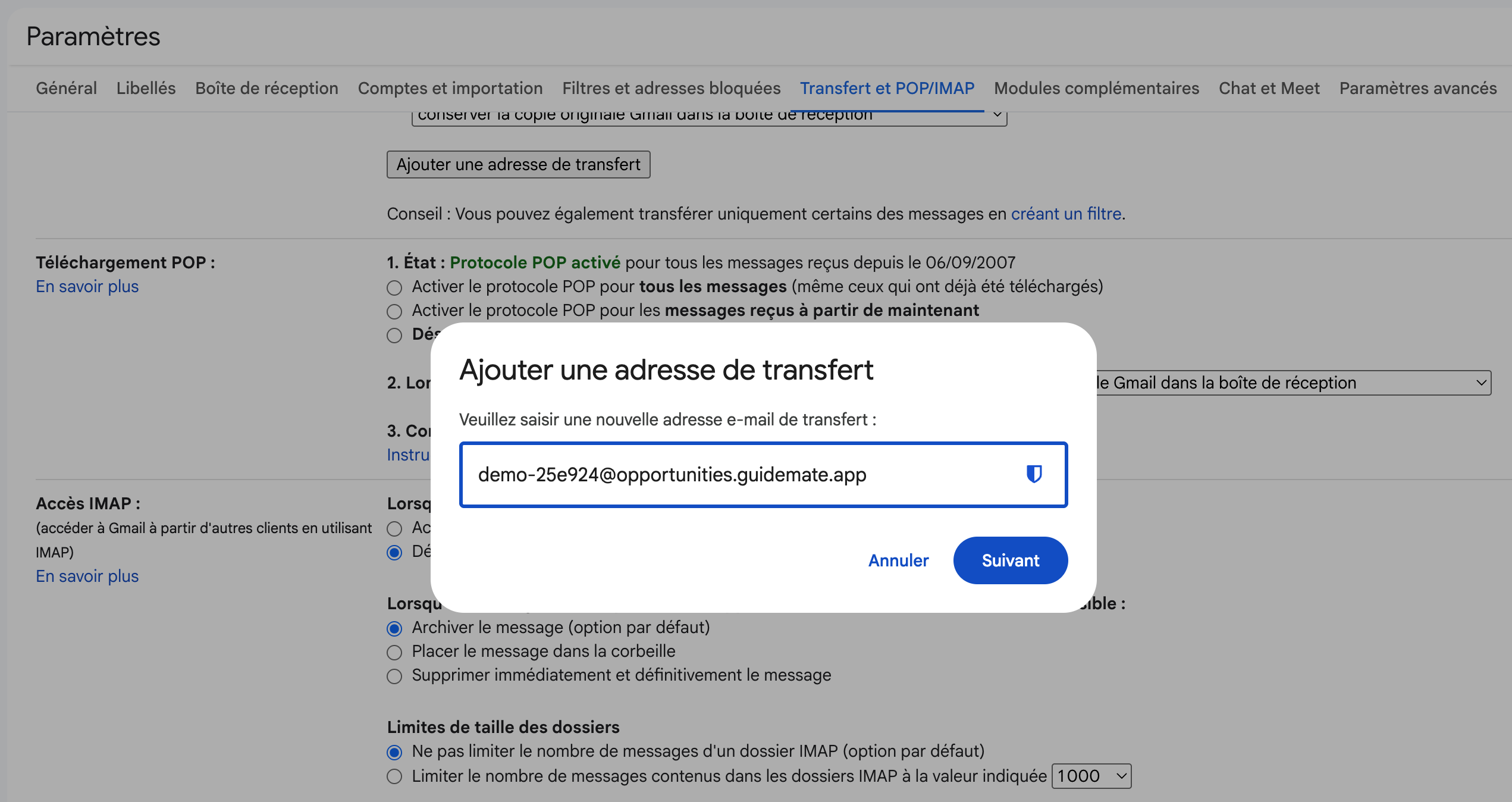
Gmail then sends a confirmation email to your GuideMate address. GuideMate detects it automatically and sends you a push notification to let you know. Tap it to open the Integrations screen, where the confirmation link appears. Tap Open link to activate forwarding in your browser, then tap Forwarding confirmed to archive the notification.

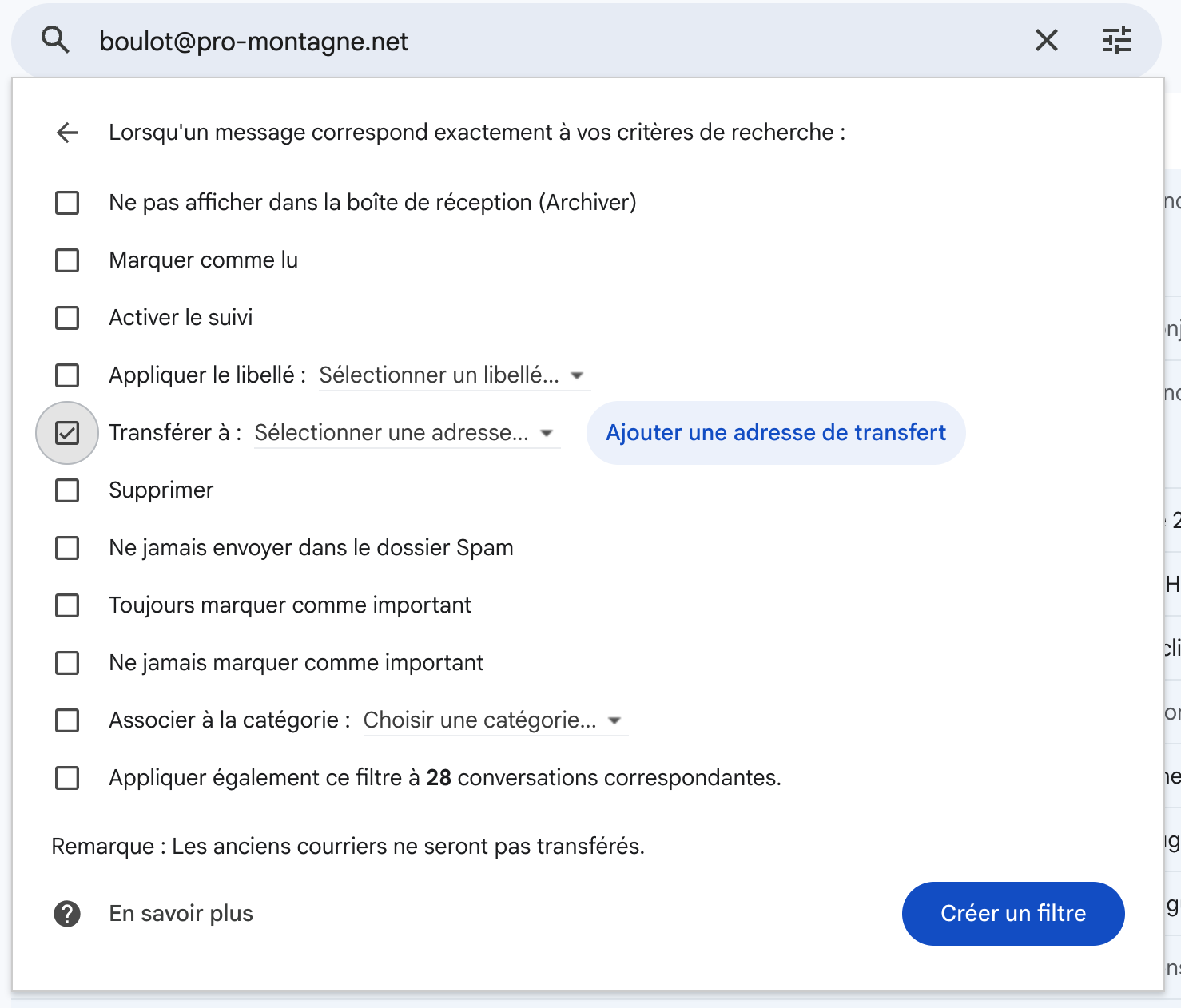
You can also create a filter (Settings → Filters) to only forward certain emails, for example those containing "request" or "outing".
Use a structured email subject to improve automatic extraction. For example:
Ski touring request — 2 people — Chamonix — March 2026
The more precise the subject, the more accurately GuideMate fills in the opportunity.
Want to try? GuideMate is free to start — no credit card, no time limit. Data hosted in Europe.
GuideMate est gratuit pour commencer. Aucune limite de durée.
Commencer gratuitementExport your Google contacts as a CSV file and import them into GuideMate in a few clicks. The dedicated flow automatically recognises your Google labels and creates tags in the app.
Exportez vos contacts Google au format CSV et importez-les dans GuideMate en quelques clics. Le flux dédié reconnaît automatiquement vos libellés Google pour créer des étiquettes dans l'application.